**c/ua** (pronounced "koo-ah") enables AI agents to control full operating systems in high-performance virtual containers with near-native speed on Apple Silicon.
# 🚀 Quick Start
Get started with a Computer-Use Agent UI and a VM with a single command:
```bash
/bin/bash -c "$(curl -fsSL https://raw.githubusercontent.com/trycua/cua/main/scripts/playground.sh)"
```
This script will:
- Install Lume CLI for VM management (if needed)
- Pull the latest macOS CUA image (if needed)
- Set up Python environment and install/update required packages
- Launch the Computer-Use Agent UI
#### Supported [Agent Loops](https://github.com/trycua/cua/blob/main/libs/agent/README.md#agent-loops)
- [UITARS-1.5](https://github.com/trycua/cua/blob/main/libs/agent/README.md#agent-loops) - Run locally on Apple Silicon with MLX, or use cloud providers
- [OpenAI CUA](https://github.com/trycua/cua/blob/main/libs/agent/README.md#agent-loops) - Use OpenAI's Computer-Use Preview model
- [Anthropic CUA](https://github.com/trycua/cua/blob/main/libs/agent/README.md#agent-loops) - Use Anthropic's Computer-Use capabilities
- [OmniParser](https://github.com/trycua/cua/blob/main/libs/agent/README.md#agent-loops) - Control UI with [Set-of-Marks prompting](https://som-gpt4v.github.io/) using any vision model
### System Requirements
- Mac with Apple Silicon (M1/M2/M3/M4 series)
- macOS 15 (Sequoia) or newer
- Disk space for VM images (30GB+ recommended)
# 💻 For Developers
### Step 1: Install Lume CLI
```bash
/bin/bash -c "$(curl -fsSL https://raw.githubusercontent.com/trycua/cua/main/libs/lume/scripts/install.sh)"
```
Lume CLI manages high-performance macOS/Linux VMs with near-native speed on Apple Silicon.
### Step 2: Pull the macOS CUA Image
```bash
lume pull macos-sequoia-cua:latest
```
The macOS CUA image contains the default Mac apps and the Computer Server for easy automation.
### Step 3: Install Python SDK
```bash
pip install cua-computer "cua-agent[all]"
```
Alternatively, see the [Developer Guide](./docs/Developer-Guide.md) for building from source.
### Step 4: Use in Your Code
```python
from computer import Computer
from agent import ComputerAgent, LLM
async def main():
# Start a local macOS VM with a 1024x768 display
async with Computer(os_type="macos", display="1024x768") as computer:
# Example: Direct control of a macOS VM with Computer
await computer.interface.left_click(100, 200)
await computer.interface.type_text("Hello, world!")
screenshot_bytes = await computer.interface.screenshot()
# Example: Create and run an agent locally using mlx-community/UI-TARS-1.5-7B-6bit
agent = ComputerAgent(
computer=computer,
loop="UITARS",
model=LLM(provider="MLX", name="mlx-community/UI-TARS-1.5-7B-6bit")
)
await agent.run("Find the trycua/cua repository on GitHub and follow the quick start guide")
main()
```
For ready-to-use examples, check out our [Notebooks](./notebooks/) collection.
### Lume CLI Reference
```bash
# Install Lume CLI
curl -fsSL https://raw.githubusercontent.com/trycua/cua/main/libs/lume/scripts/install.sh | bash
# List all VMs
lume ls
# Pull a VM image
lume pull macos-sequoia-cua:latest
# Create a new VM
lume create my-vm --os macos --cpu 4 --memory 8GB --disk-size 50GB
# Run a VM (creates and starts if it doesn't exist)
lume run macos-sequoia-cua:latest
# Stop a VM
lume stop macos-sequoia-cua_latest
# Delete a VM
lume delete macos-sequoia-cua_latest
```
For advanced container-like virtualization, check out [Lumier](./libs/lumier/README.md) - a Docker interface for macOS and Linux VMs.
## Resources
- [How to use the MCP Server with Claude Desktop or other MCP clients](./libs/mcp-server/README.md) - One of the easiest ways to get started with C/ua
- [How to use OpenAI Computer-Use, Anthropic, OmniParser, or UI-TARS for your Computer-Use Agent](./libs/agent/README.md)
- [How to use Lume CLI for managing desktops](./libs/lume/README.md)
- [Training Computer-Use Models: Collecting Human Trajectories with C/ua (Part 1)](https://www.trycua.com/blog/training-computer-use-models-trajectories-1)
- [Build Your Own Operator on macOS (Part 1)](https://www.trycua.com/blog/build-your-own-operator-on-macos-1)
## Modules
| Module | Description | Installation |
|--------|-------------|---------------|
| [**Lume**](./libs/lume/README.md) | VM management for macOS/Linux using Apple's Virtualization.Framework | `curl -fsSL https://raw.githubusercontent.com/trycua/cua/main/libs/lume/scripts/install.sh \| bash` |
| [**Computer**](./libs/computer/README.md) | Interface for controlling virtual machines | `pip install cua-computer` |
| [**Agent**](./libs/agent/README.md) | AI agent framework for automating tasks | `pip install cua-agent` |
| [**MCP Server**](./libs/mcp-server/README.md) | MCP server for using CUA with Claude Desktop | `pip install cua-mcp-server` |
| [**SOM**](./libs/som/README.md) | Self-of-Mark library for Agent | `pip install cua-som` |
| [**PyLume**](./libs/pylume/README.md) | Python bindings for Lume | `pip install pylume` |
| [**Computer Server**](./libs/computer-server/README.md) | Server component for Computer | `pip install cua-computer-server` |
| [**Core**](./libs/core/README.md) | Core utilities | `pip install cua-core` |
## Computer Interface Reference
For complete examples, see [computer_examples.py](./examples/computer_examples.py) or [computer_nb.ipynb](./notebooks/computer_nb.ipynb)
```python
# Mouse Actions
await computer.interface.left_click(x, y) # Left click at coordinates
await computer.interface.right_click(x, y) # Right click at coordinates
await computer.interface.double_click(x, y) # Double click at coordinates
await computer.interface.move_cursor(x, y) # Move cursor to coordinates
await computer.interface.drag_to(x, y, duration) # Drag to coordinates
await computer.interface.get_cursor_position() # Get current cursor position
# Keyboard Actions
await computer.interface.type_text("Hello") # Type text
await computer.interface.press_key("enter") # Press a single key
await computer.interface.hotkey("command", "c") # Press key combination
# Screen Actions
await computer.interface.screenshot() # Take a screenshot
await computer.interface.get_screen_size() # Get screen dimensions
# Clipboard Actions
await computer.interface.set_clipboard(text) # Set clipboard content
await computer.interface.copy_to_clipboard() # Get clipboard content
# File System Operations
await computer.interface.file_exists(path) # Check if file exists
await computer.interface.directory_exists(path) # Check if directory exists
await computer.interface.run_command(cmd) # Run shell command
# Accessibility
await computer.interface.get_accessibility_tree() # Get accessibility tree
```
## ComputerAgent Reference
For complete examples, see [agent_examples.py](./examples/agent_examples.py) or [agent_nb.ipynb](./notebooks/agent_nb.ipynb)
```python
# Import necessary components
from agent import ComputerAgent, LLM, AgentLoop, LLMProvider
# UI-TARS-1.5 agent for local execution with MLX
ComputerAgent(loop=AgentLoop.UITARS, model=LLM(provider=LLMProvider.MLX, name="mlx-community/UI-TARS-1.5-7B-6bit"))
# OpenAI Computer-Use agent using OPENAI_API_KEY
ComputerAgent(loop=AgentLoop.OPENAI, model=LLM(provider=LLMProvider.OPENAI, name="computer-use-preview"))
# Anthropic Claude agent using ANTHROPIC_API_KEY
ComputerAgent(loop=AgentLoop.ANTHROPIC, model=LLM(provider=LLMProvider.ANTHROPIC))
# OmniParser loop for UI control using Set-of-Marks (SOM) prompting and any vision LLM
ComputerAgent(loop=AgentLoop.OMNI, model=LLM(provider=LLMProvider.OLLAMA, name="gemma3:12b-it-q4_K_M"))
# OpenRouter example using OAICOMPAT provider
ComputerAgent(
loop=AgentLoop.OMNI,
model=LLM(
provider=LLMProvider.OAICOMPAT,
name="openai/gpt-4o-mini",
provider_base_url="https://openrouter.ai/api/v1"
),
api_key="your-openrouter-api-key"
)
```
## Demos
Check out these demos of the Computer-Use Agent in action:
MCP Server: Work with Claude Desktop and Tableau
AI-Gradio: Multi-app workflow with browser, VS Code and terminal
Notebook: Fix GitHub issue in Cursor
## Community
Join our [Discord community](https://discord.com/invite/mVnXXpdE85) to discuss ideas, get assistance, or share your demos!
## License
Cua is open-sourced under the MIT License - see the [LICENSE](LICENSE) file for details.
Microsoft's OmniParser, which is used in this project, is licensed under the Creative Commons Attribution 4.0 International License (CC-BY-4.0) - see the [OmniParser LICENSE](https://github.com/microsoft/OmniParser/blob/master/LICENSE) file for details.
## Contributing
We welcome contributions to CUA! Please refer to our [Contributing Guidelines](CONTRIBUTING.md) for details.
## Trademarks
Apple, macOS, and Apple Silicon are trademarks of Apple Inc. Ubuntu and Canonical are registered trademarks of Canonical Ltd. Microsoft is a registered trademark of Microsoft Corporation. This project is not affiliated with, endorsed by, or sponsored by Apple Inc., Canonical Ltd., or Microsoft Corporation.
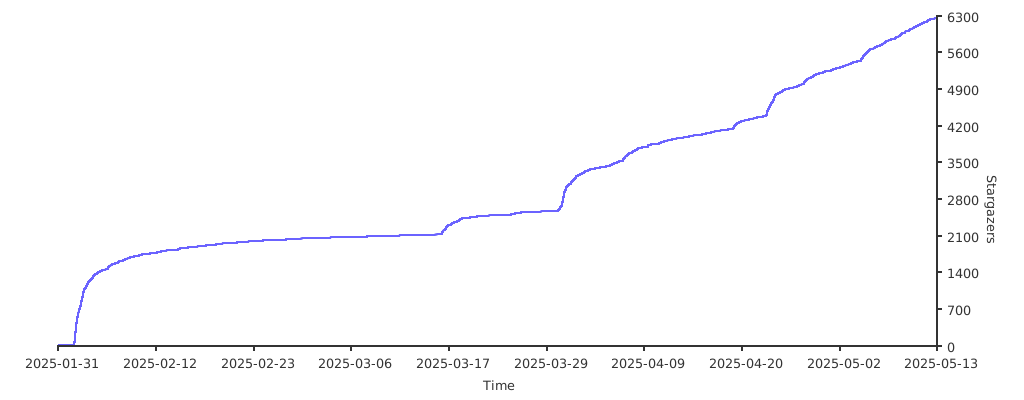
## Stargazers
Thank you to all our supporters!
[](https://starchart.cc/trycua/cua)
## Contributors


