13 KiB


c/ua (pronounced "koo-ah") enables AI agents to control full operating systems in high-performance virtual containers with near-native speed on Apple Silicon.
🚀 Quick Start
Get started with a Computer-Use Agent UI and a VM with a single command:
/bin/bash -c "$(curl -fsSL https://raw.githubusercontent.com/trycua/cua/main/scripts/playground.sh)"
This script will:
- Install Lume CLI for VM management
- Pull the latest macOS CUA image
- Set up Python environment and install required packages
- Create a desktop shortcut for easy access
- Launch the Computer-Use Agent UI
System Requirements
- Mac with Apple Silicon (M1/M2/M3/M4 series)
- macOS 15 (Sequoia) or newer
- Disk space for VM images (30GB+ recommended)
💻 For Developers
Step 1: Install Lume CLI
/bin/bash -c "$(curl -fsSL https://raw.githubusercontent.com/trycua/cua/main/libs/lume/scripts/install.sh)"
Lume CLI manages high-performance macOS/Linux VMs with near-native speed on Apple Silicon.
Step 2: Pull the macOS CUA Image
lume pull macos-sequoia-cua:latest
The macOS CUA image contains the default Mac apps and the Computer Server for easy automation.
Step 3: Install Python SDK
pip install cua-computer "cua-agent[all]"
Alternatively, see the Developer Guide for building from source.
Step 4: Use in Your Code
# Example: Using the Computer-Use Agent
from agent import ComputerAgent

# Create and run an agent locally using UI-TARS and MLX
agent = ComputerAgent(computer=my_computer, loop="UITARS")
await agent.run("Search for information about CUA on GitHub")

# Example: Direct control of a macOS VM with Computer
from computer import Computer

async with Computer(os_type="macos") as computer:
    # Take a screenshot
    screenshot = await computer.screenshot()
    # Click on an element
    await computer.mouse.click(x=100, y=200)
    # Type text
    await computer.keyboard.type("Hello, world!")
For ready-to-use examples, check out our Notebooks collection.
Lume CLI Reference
# Install Lume CLI
curl -fsSL https://raw.githubusercontent.com/trycua/cua/main/libs/lume/scripts/install.sh | bash

# List available VM images
lume list

# Pull a VM image
lume pull macos-sequoia-cua:latest

# Create a new VM
lume create my-vm --image macos-sequoia-cua:latest

# Start a VM
lume start my-vm

# Stop a VM
lume stop my-vm

# Delete a VM
lume delete my-vm
Resources
- When and how to use OpenAI Computer-Use, Anthropic, OmniParser, or UI-TARS for your Computer-Use Agent
- How to use Lume CLI for managing desktops
- Training Computer-Use Models: Collecting Human Trajectories with C/ua (Part 1)
- Build Your Own Operator on macOS (Part 1)
Modules
| Module | Description | Installation |
|---|---|---|
| Lume | VM management for macOS/Linux using Apple's Virtualization.Framework | curl -fsSL https://raw.githubusercontent.com/trycua/cua/main/libs/lume/scripts/install.sh | bash |
| Computer | Interface for controlling virtual machines | pip install cua-computer |
| Agent | AI agent framework for automating tasks | pip install cua-agent |
| SOM | Self-of-Mark library for Agent | pip install cua-som |
| PyLume | Python bindings for Lume | pip install pylume |
| Computer Server | Server component for Computer | pip install cua-computer-server |
| Core | Core utilities | pip install cua-core |
Computer Interface Reference
# Mouse Actions
await computer.interface.left_click(x, y)       # Left click at coordinates
await computer.interface.right_click(x, y)      # Right click at coordinates
await computer.interface.double_click(x, y)     # Double click at coordinates
await computer.interface.move_cursor(x, y)      # Move cursor to coordinates
await computer.interface.drag_to(x, y, duration)  # Drag to coordinates
await computer.interface.get_cursor_position()  # Get current cursor position

# Keyboard Actions
await computer.interface.type_text("Hello")     # Type text
await computer.interface.press_key("enter")     # Press a single key
await computer.interface.hotkey("command", "c") # Press key combination

# Screen Actions
await computer.interface.screenshot()           # Take a screenshot
await computer.interface.get_screen_size()      # Get screen dimensions

# Clipboard Actions
await computer.interface.set_clipboard(text)    # Set clipboard content
await computer.interface.copy_to_clipboard()    # Get clipboard content

# File System Operations
await computer.interface.file_exists(path)      # Check if file exists
await computer.interface.directory_exists(path) # Check if directory exists
await computer.interface.run_command(cmd)       # Run shell command

# Accessibility
await computer.interface.get_accessibility_tree() # Get accessibility tree
ComputerAgent Reference
# Import necessary components
from agent import ComputerAgent, LLM, AgentLoop, LLMProvider

# Agent Loops
ComputerAgent(loop=AgentLoop.UITARS)     # UI-TARS loop for local execution with MLX
ComputerAgent(loop=AgentLoop.OPENAI)     # OpenAI Computer-Use model using OpenAI provider
ComputerAgent(loop=AgentLoop.ANTHROPIC)  # Anthropic Claude model using Anthropic provider
ComputerAgent(loop=AgentLoop.OMNI, model=LLM(provider=LLMProvider.OLLAMA, name="gemma3:12b-it-q4_K_M"))       # OmniParser loop for UI control using Set-of-Marks (SOM) prompting and any vision model

# OpenRouter example using OAICOMPAT provider
ComputerAgent(
    loop=AgentLoop.OMNI,
    model=LLM(
        provider=LLMProvider.OAICOMPAT,
        name="openai/gpt-4.1",
        provider_base_url="https://openrouter.ai/api/v1"
    )
)
Demos
Check out these demos of the Computer-Use Agent in action:
MCP Server: Work with Claude Desktop and Tableau
AI-Gradio: Multi-app workflow with browser, VS Code and terminal
Community
Join our Discord community to discuss ideas, get assistance, or share your demos!
License
Cua is open-sourced under the MIT License - see the LICENSE file for details.
Contributing
We welcome contributions to CUA! Please refer to our Contributing Guidelines for details.
Trademarks
Apple, macOS, and Apple Silicon are trademarks of Apple Inc. This project is not affiliated with, endorsed by, or sponsored by Apple Inc.
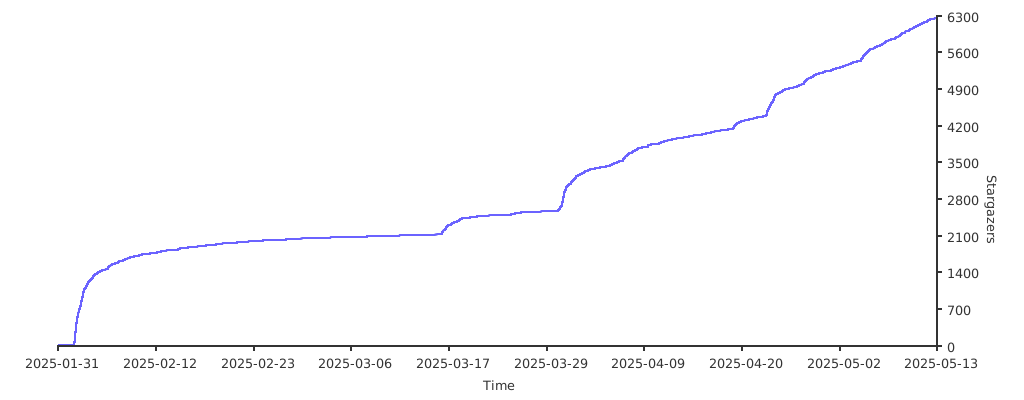
Stargazers
Thank you to all our supporters!